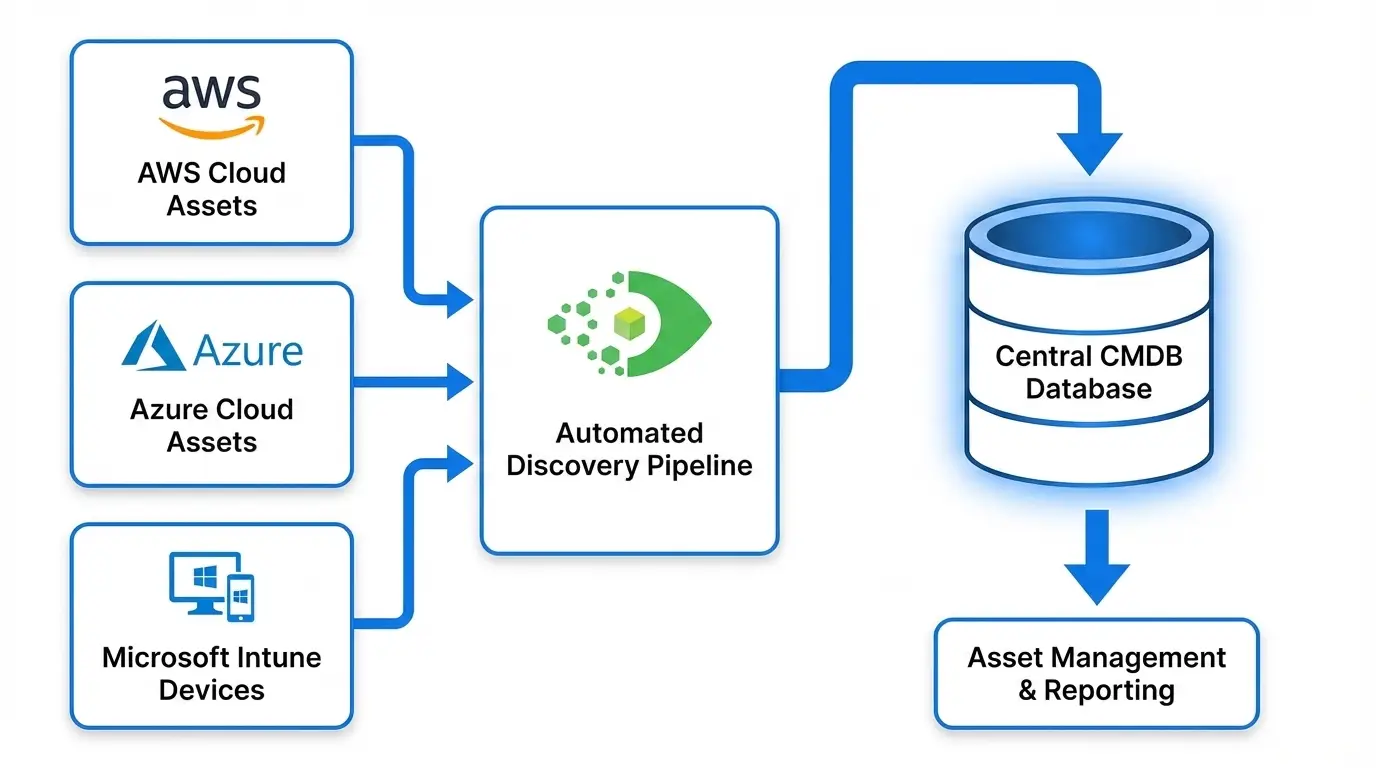
How to Automatically Import and Discover AWS, Azure, and Intune Assets into Your CMDB

TLDR
Cloud assets do not automatically appear in your CMDB. API-based discovery must be configured per cloud provider, scheduled to run regularly, monitored via import logs, and supplemented with a decommissioning workflow. This guide walks through setup for AWS (including multi-account), Azure, and Intune, with practical tips for scheduling, log review, and CI lifecycle management.
Introduction
Cloud adoption accelerates faster than CMDB processes can keep up. Virtual machines, serverless functions, storage buckets, and endpoint devices are provisioned on-demand, often without the change management workflows that traditionally triggered CMDB updates. The result is a growing gap between what runs in the cloud and what the CMDB records.
Closing this gap requires automation. Manual cloud asset imports — even monthly — fall too far behind in active cloud environments. The answer is scheduled, API-driven discovery that pulls cloud asset data directly into the CMDB at regular intervals.
This guide explains how to set up automated cloud discovery for AWS, Azure, and Intune, and how to keep that discovery running reliably.
Why Cloud Assets Don’t Automatically Appear in CMDB
The fundamental issue is architectural: the CMDB was designed for a world where infrastructure changes slowly and goes through controlled provisioning processes. Cloud changes that workflow entirely.
Provisioning happens outside CMDB workflows. An engineer provisions an EC2 instance via AWS CLI, a Terraform script, or the AWS Console. No CMDB ticket is raised, no asset record is created. The instance is running and serving traffic — invisible to the CMDB.
Cloud resources have no agent to install. Traditional CMDB discovery for servers relies on WMI, SSH, or installed agents. Lambda functions, S3 buckets, NAT Gateways, and Azure resource groups have no OS to install an agent on. They require API-based discovery.
Resource metadata lives in cloud APIs, not network scans. A NAT Gateway does not respond to a port scan. An S3 bucket does not broadcast its existence on the network. Cloud resources are only discoverable through their respective cloud provider APIs.
Multi-account and multi-region fragmentation. A single AWS discovery integration in one account misses everything in other accounts and regions. Azure discovery scoped to one subscription misses resources in others.
The solution to all of these problems is the same: configure API-authenticated discovery per cloud provider, cover all accounts, subscriptions, and regions where resources exist, and run discovery on a schedule.
How to Set Up AWS Discovery in Your CMDB
Step 1: Create an IAM Role for Discovery
In each AWS account to be discovered, create an IAM role with read-only permissions for the services you want in your CMDB. At minimum, include:
ec2:Describe*— EC2 instances, VPCs, subnets, security groups, NAT Gatewayss3:ListAllMyBuckets,s3:GetBucketLocation,s3:GetBucketPolicylambda:ListFunctions,lambda:GetFunctionecr:DescribeRepositoriesrds:DescribeDBInstances
The role’s trust policy should allow assumption from your CMDB tool’s discovery identity — either an IAM user in a dedicated discovery account or an IAM role if the CMDB runs inside AWS. For complete permission requirements and cross-account access patterns, see AWS cross-account IAM roles documentation.
Step 2: Configure Assume Role with External ID
For each account, add an External ID condition to the trust policy. The External ID is a secret string unique to your CMDB tenant and prevents confused deputy attacks — a documented vulnerability where a third-party SaaS tool can be tricked into acting on resources in accounts it should not have access to.
"Condition": {
  "StringEquals": {
    "sts:ExternalId": "your-unique-external-id"
  }
}
Your CMDB tool provides the External ID value when you configure the integration. Add it to the trust policy condition block before saving the role.
Step 3: Configure Discovery in Your CMDB Tool
In your CMDB discovery tool, create a cloud account configuration for each AWS account. Provide:
- Target role ARN
- External ID
- Regions to scan (be explicit — do not assume all regions are relevant)
- CI types to discover (EC2, S3, Lambda, ECR, etc.)
Step 4: Run an Initial Discovery
Trigger an on-demand discovery run and review the import log. Verify that:
- Resources from all configured regions are appearing
- All expected CI types are being captured
- No authentication or permission errors appear in the log
Resolve any issues before configuring automated scheduling.
Step 5: Schedule Recurring Discovery
Configure the discovery run to execute automatically. Daily is appropriate for most production environments. For high-velocity environments with frequent provisioning, hourly runs for key resource types such as EC2 and Lambda provide more current CMDB data.
How to Configure Azure and Intune Imports
Azure Setup
Azure discovery uses a service principal with Reader role permissions at the subscription level.
Step 1: In Azure Active Directory (Entra ID), register an application and create a client secret. For production environments, certificate-based authentication is preferable to a client secret.
Step 2: Assign the registered application the Reader role on each subscription to be discovered. For environments with multiple subscriptions, assigning Reader at the management group level covers all child subscriptions automatically.
Step 3: In your CMDB tool, configure the Azure integration with the tenant ID, client (application) ID, and client secret. Specify the subscriptions to discover and the resource types to capture.
Step 4: Run initial discovery and verify results. Confirm that virtual machines, virtual networks, resource groups, and other configured resource types appear as CIs with correct attribute values.
Intune Setup
Intune discovery uses the Microsoft Graph API, which requires different permissions from Azure resource discovery.
Step 1: In Entra ID, add the following Microsoft Graph API application permission to your registered application: DeviceManagementManagedDevices.Read.All. Full permission requirements are documented in Microsoft’s Intune Graph API overview.
Step 2: Grant admin consent for the permission in the Entra ID app registration. This step requires a Global Administrator or Intune Administrator role in your tenant.
Step 3: In your CMDB tool, configure the Intune integration using the same application credentials. Select the device attributes to import: device name, OS type and version, compliance state, last check-in time, assigned user, and enrollment type.
Step 4: Run initial discovery. Intune-managed devices should appear as endpoint CIs in the CMDB alongside cloud and on-premises infrastructure.
What Intune discovery adds to your CMDB: Most enterprise CMDBs have excellent server coverage and reasonable virtual machine coverage, but zero endpoint device coverage. Intune-managed laptops, mobile devices, and remote worker endpoints are CI candidates that affect change impact analysis for endpoint management tooling, security patching, and compliance reporting.
How to Schedule Automated Cloud Asset Imports
Scheduling cloud discovery appropriately means matching the discovery frequency to the rate of change in your environment.
Recommended schedules by environment type:
| Environment | EC2 / Azure VMs | S3 / Storage Accounts | Lambda | Intune Devices |
|---|---|---|---|---|
| Development | Daily | Weekly | Daily | Daily |
| Production | Daily | Daily | Daily | Daily |
| High-velocity (active DevOps) | Hourly | Daily | Hourly | Daily |
When setting discovery schedules across multiple accounts or subscriptions, stagger the runs to distribute API load. Running all accounts simultaneously can trigger AWS or Azure API rate limits, causing partial discovery failures.
For AWS, consider structuring discovery schedules by account type:
- Production accounts: run at 2:00 AM local time
- Development accounts: run at 4:00 AM local time
- Sandbox accounts: run weekly on Sunday
How to Track Import Status and Resolve Errors
Every discovery run generates an import log. Reviewing this log is the primary quality control mechanism for cloud CMDB data.
Common error types and resolutions:
| Error Type | Likely Cause | Resolution |
|---|---|---|
| Authentication failure | Expired credentials or wrong External ID | Rotate credentials, verify trust policy condition |
| Permission denied on specific API | IAM policy missing required action | Add missing read-only permission to discovery role |
| API rate limit exceeded | Too many concurrent discovery runs | Stagger discovery schedules, reduce scope per run |
| Region not accessible | Account not enabled in that region | Remove region from discovery scope or enable in AWS console |
| Resource type not discovered | CI type not configured or not supported | Review discovery scope configuration in CMDB tool |
| Intune devices showing as non-compliant | Stale compliance data | Check Intune check-in schedule; this is expected for devices offline 24+ hours |
Set up alerts for discovery failures. A discovery run that completes with zero new or updated CIs (when activity is expected) or produces significantly fewer CIs than the previous run indicates either a major decommissioning event or a discovery failure. Both are worth investigating immediately.
How to Ensure Cloud Assets Stay Current in CMDB
Keeping cloud asset data current requires handling both new resources and decommissioned resources.
New resources: Scheduled discovery handles these automatically. Resources provisioned between discovery runs appear in the CMDB on the next scheduled run. For time-sensitive environments, more frequent schedules minimize the lag between provisioning and CMDB visibility.
Updated attributes: Resource attributes that change frequently — EC2 instance state, Intune compliance status, Lambda function configuration — should be updated on every discovery run. Verify that your CMDB discovery tool updates existing CIs with current attribute values rather than skipping already-discovered resources.
Decommissioned resources: When a cloud resource is terminated or deleted, discovery stops returning it. Build a lifecycle policy: mark CIs as decommissioned when they are absent from a defined number of consecutive discovery runs. Do not delete CI records immediately — retain them for audit and change management traceability.
Tag-driven CI classification: Use cloud resource tags to populate CMDB attributes like application owner, environment, and business service. When tagging standards change or improve, re-discovery automatically updates tag-derived attributes in the CMDB, keeping classification current without manual updates.
Multi-region coverage review: Periodically audit which AWS regions are enabled in each account and ensure discovery scope covers them. Engineering teams occasionally enable new regions for latency or compliance reasons — discovery configurations need to be updated when this happens.
Conclusion
Closing the cloud asset visibility gap in your CMDB requires API-based discovery for each cloud provider, configured with appropriate credentials and scope, running on a schedule matched to your environment’s rate of change. AWS Assume Role, Azure service principals, and Intune Microsoft Graph API access are the authentication patterns that make secure, automated cloud discovery possible at enterprise scale.
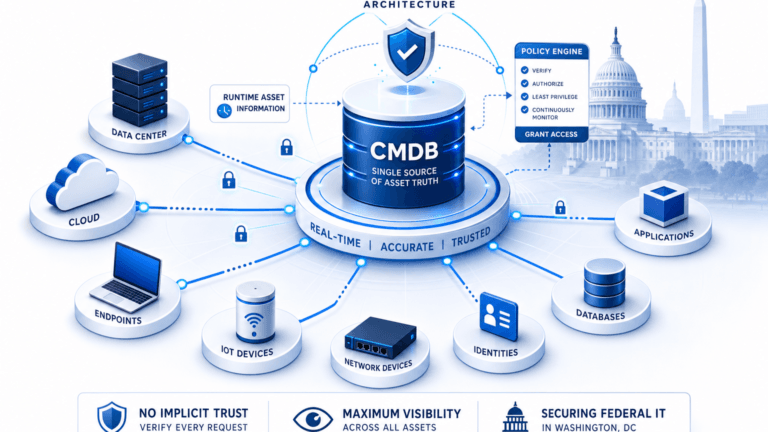
With cloud discovery in place, the CMDB becomes a reliable source of truth for the full hybrid estate — on-premises servers, cloud instances, serverless functions, endpoints, and network devices — supporting change management, compliance, and service mapping across all infrastructure layers.
Ready to automate cloud asset discovery into your CMDB? Schedule a demo at virima.com and see how Virima handles AWS, Azure, and Intune discovery at enterprise scale.