Endpoint Data Source for Your CMDB: SCCM, Intune, or Direct Scanning?

In a ServiceNow community post, a practitioner described conflicting assigned-user values from Intune and SCCM for a laptop.
After restricting SCCM discovery, the practitioner reported missing software data for that resource in their ServiceNow setup. The account illustrates the practical decisions a CMDB owner faces when multiple sources overlap.
Choosing an endpoint data source for a CMDB starts with the fields the team needs to trust. Hardware identifiers, compliance status, assigned users, and installed software can each have different owners. A documented fallback helps the team resolve gaps without reopening the same dispute after every import.
What counts as an endpoint data source for a CMDB?
An endpoint data source supplies information about a device to a configuration management database (CMDB). The resulting configuration item (CI) can combine details from management systems, discovery tools, and records maintained by people.
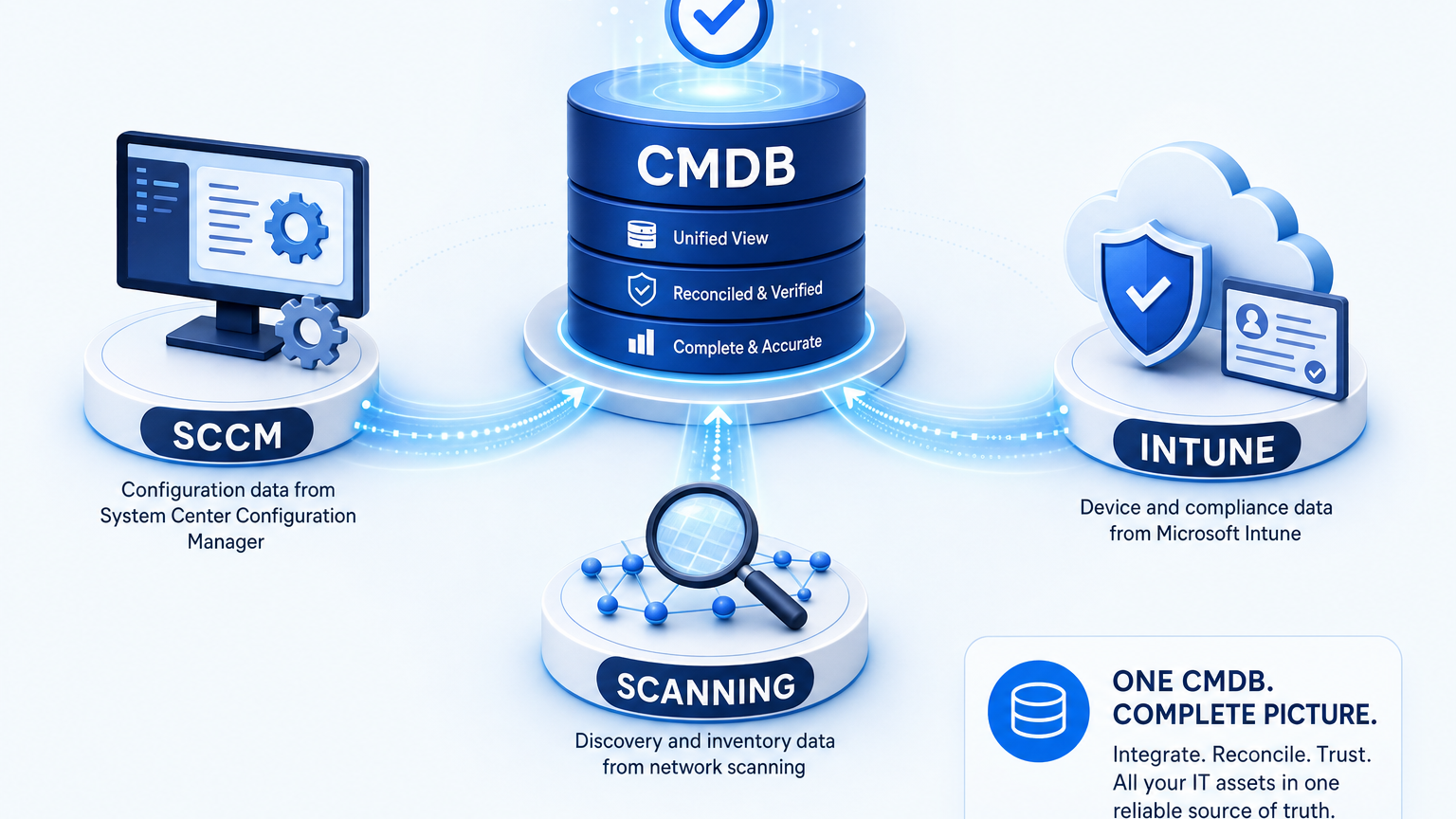
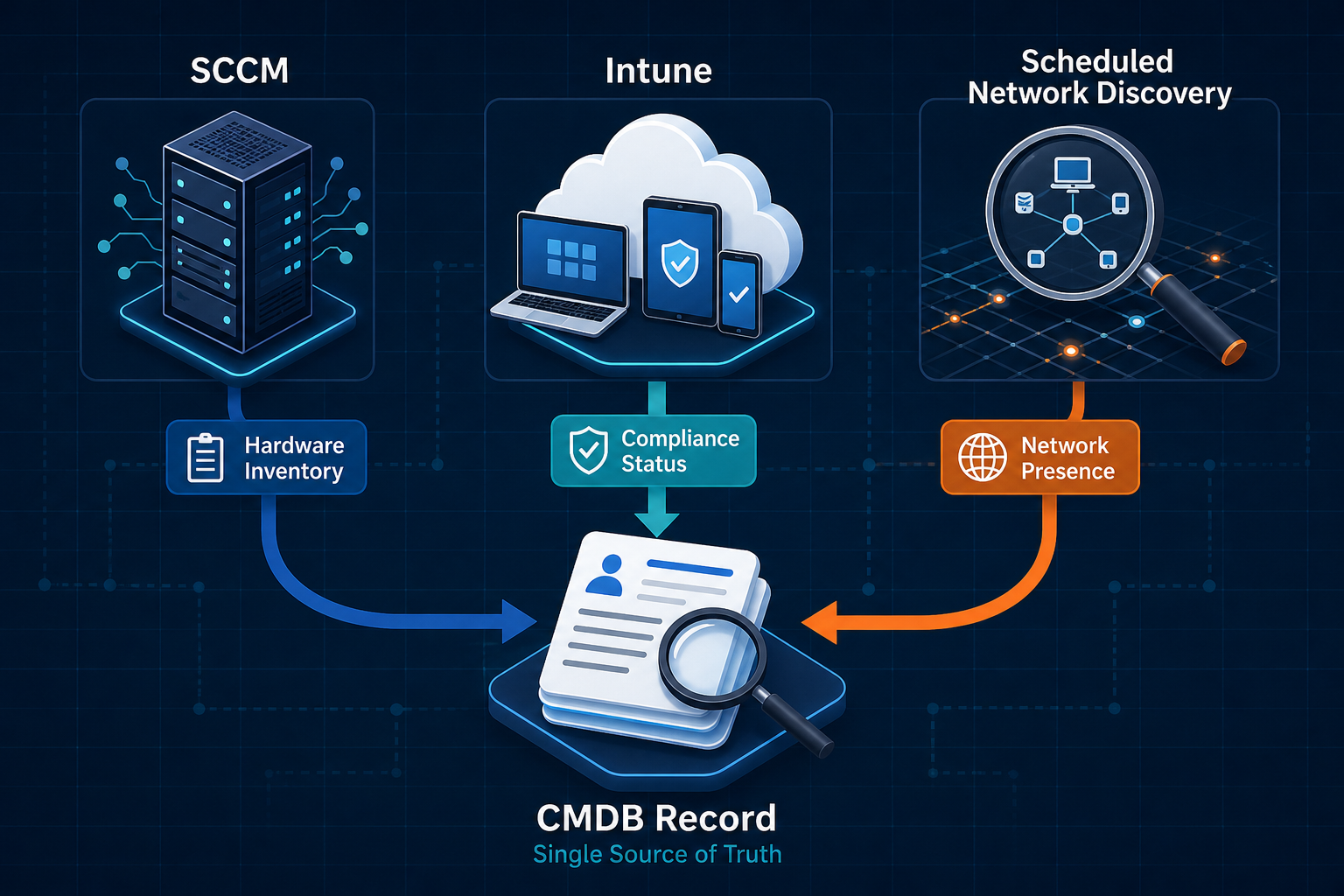
Microsoft Configuration Manager, often called SCCM, collects inventory through its client. Microsoft Intune manages enrolled devices through a cloud-based management service. Direct scanning gathers information from devices a discovery system can reach during a scheduled cycle.
The sources overlap, but their coverage depends on enrollment, client health, network access, and the fields each connector imports. A missing value may mean a device was unreachable, a source did not collect the field, or an import excluded it.
When feeds disagree, a reconciliation plan helps teams decide how to handle competing values. The plan should also identify who investigates exceptions and how long an old value remains acceptable.
What SCCM and Intune each hold
SCCM inventory
Configuration Manager collects hardware inventory from client devices when hardware inventory is enabled. Virima’s SCCM endpoint connection aligns endpoint inventory, configurations, and device data with Virima assets. According to Microsoft’s hardware inventory documentation, the first report is full inventory; later reports contain changes.
Administrators set the collection schedule and can extend the inventory classes. Microsoft’s client settings documentation lists seven days as the default hardware inventory cycle. Your organization may use a different schedule.
Configuration Manager also offers software inventory and software metering. Their usefulness to the CMDB depends on configuration and the connector’s available data.
Intune inventory
Intune records properties for enrolled devices, including hardware, operating system, and compliance information. Microsoft’s device details documentation says hardware and software inventory refreshes every seven days from enrollment.
Some application reports follow different timing and scope. For example, Microsoft’s discovered apps documentation describes a 24-hour collection cycle for certain Windows applications. Personal-device privacy restrictions also affect which apps appear.
Co-managed devices
A co-managed Windows device has the Configuration Manager client and is enrolled in Intune. Microsoft’s co-management overview explains that administrators can move supported management workloads individually.
A workload setting does not, by itself, decide which value your CMDB should accept. The CMDB team still needs to test the fields supplied by each connector.
| Source | Collection path | Freshness | Useful data | Coverage limit |
|---|---|---|---|---|
| SCCM | Configuration Manager client | Hardware inventory defaults to seven days; administrators can change it. | Hardware inventory, software inventory, and configured metering. | Client health, settings, and connector scope affect the result. |
| Intune | Enrolled device management channel | Device inventory generally refreshes every seven days; some app data differs. | Managed device properties, compliance status, and supported app inventory. | Enrollment, platform, ownership, and connector scope affect the result. |
| Co-managed device | SCCM client plus Intune enrollment | Each service follows its own collection and import schedules. | Fields available from both configured services. | Overlapping reports require a CMDB decision for each field. |
What enrollment cannot see
An Intune record starts with a device enrolled in the management service. Virima’s managed endpoint connection tracks those endpoints and aligns device data with assets. A scheduled network scan can also find reachable devices outside that enrolled population, subject to scan scope and access.
Consider a branch printer that appears during discovery but has no Intune record. The finding gives the team a candidate CI to investigate. The team still needs to confirm the device’s identity, owner, and lifecycle status.
The reverse gap affects roaming laptops. A laptop away from a scanned network may be absent from a particular discovery cycle. Its management record can still supply the last reported information, provided the device has checked in.
Treat missing and stale records as separate exceptions. A missing CI needs identification and an ownership decision. A stale CI needs a check of its last observation, collection path, and expected refresh window.
For security operations, a device absent from a management inventory deserves investigation against the organization’s required controls. A discovery finding alone does not establish whether those controls are present or absent.
What does a missed network scan mean for an endpoint?
A missed network scan means the endpoint was not observed by that discovery cycle. It may have been offline, outside the scan scope, blocked by access controls, or unable to respond. Check the scan scope and the endpoint’s other reporting history before changing its lifecycle status.
When two sources disagree on one device
A disagreement can affect a single attribute, the source label, or the software inventory attached to a record. Each case needs a different investigation.
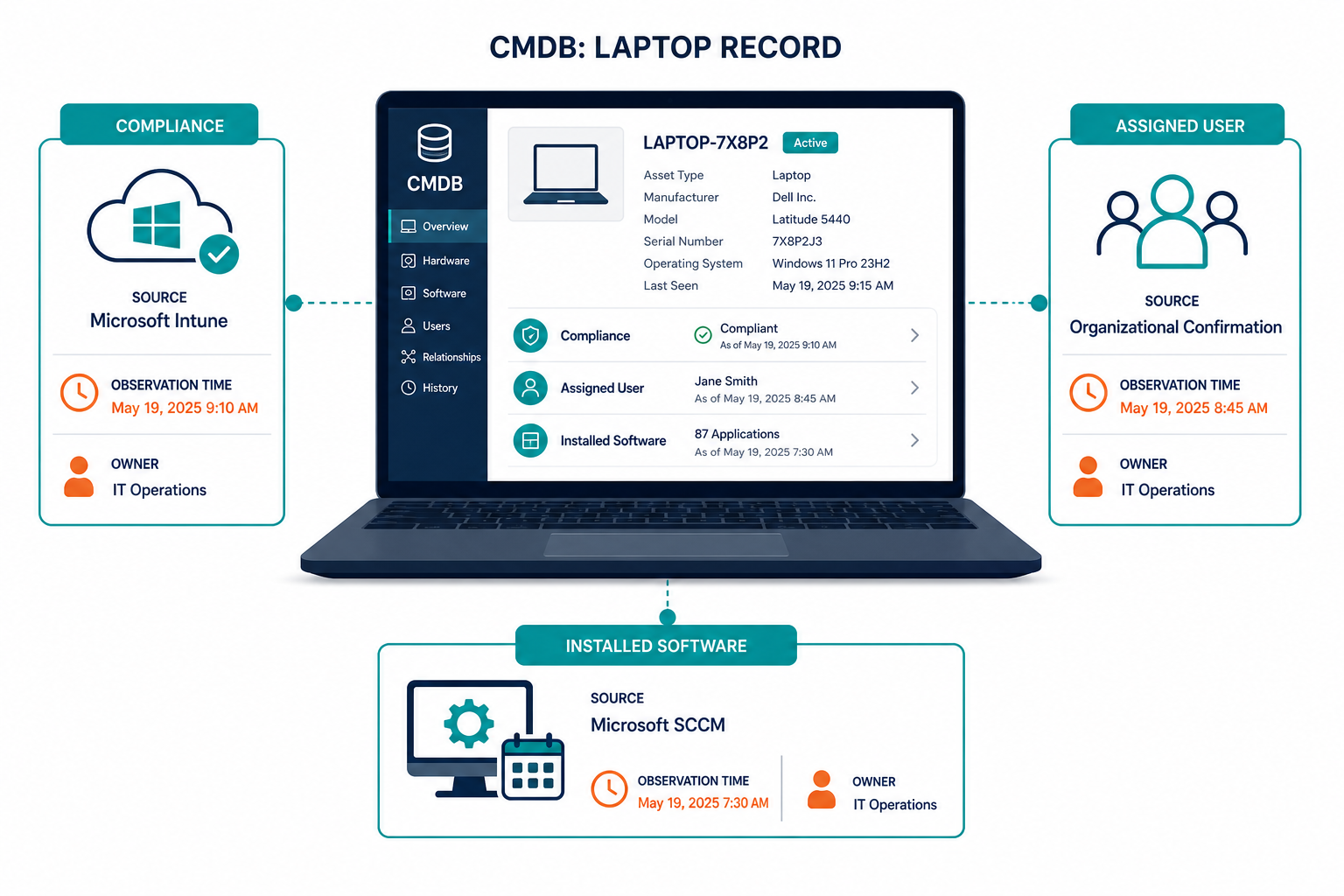
1. Different assigned users. An Intune record may name one primary user while SCCM supplies another. The practitioner described in the introduction reported conflicting assigned-user values after enabling both connectors.
Result: The CMDB team must verify the assignment with the responsible people and inspect its platform’s reconciliation rules. A later import does not prove that the reported user is correct.
2. A changing source label. Another ServiceNow community discussion describes a source field switching between connector jobs on co-managed computers.
Result: A single source label may not explain which feed supplied each attribute. Check field history or the connector logs before using that label as evidence.
3. Incomplete software data. The first practitioner also reported that an SCCM connector did not collect software for a resource under their chosen source configuration. Their description concerns a specific ServiceNow setup.
Result: Test the connector’s software behavior before excluding a device from one feed. A hardware decision can otherwise leave the IT asset management team with an incomplete installation record.
For each conflict, record the observed values, source timestamps, and the person responsible for deciding. A multi-source reconciliation plan can guide the team’s response to conflicting reports. Confirm whether your CMDB can enforce the decision or whether the team needs a manual exception process.
Which source should own which field?
Start with the source closest to the fact you need. Test its coverage and freshness before making it the preferred source.
The table is a practical starting point for a mixed estate. It describes an operating decision, not a guaranteed capability of any particular CMDB.
| Field | Suggested starting owner | Reason | Fallback or check |
|---|---|---|---|
| Serial number and model | Intune or SCCM for managed endpoints | Both can hold device inventory collected from managed equipment. | Compare discovery and procurement records; investigate missing or conflicting serial numbers. |
| Operating system version | The management or discovery source with verified coverage | The best choice depends on which source reports the relevant device and version. | Compare observation dates and check the device when values conflict. |
| Intune compliance state | Intune | Intune evaluates the device against its assigned compliance policies. | Review enrollment, policy assignment, and the last reported status. |
| Assigned user | The organization’s confirmed assignment record | A primary user, last user, and asset assignee can describe different relationships. | Have the asset owner or service desk confirm the assignment. |
| Installed software and versions | SCCM or another tested inventory source | Choose the source that supplies the applications and versions required for the estate. | Compare Intune app reports and discovery results for supported devices. |
| Software usage | A configured usage or metering source | An installation record alone does not establish whether software was used. | Confirm collection coverage before using the field for license decisions. |
| Last seen on network and IP address | Scheduled network discovery | A scan records an observation within its configured scope. | Retain the observation time and compare management-system check-ins. |
| Servers and network equipment | A discovery or infrastructure inventory source | These devices may fall outside the endpoint enrollment population. | Confirm credentials, scan scope, and infrastructure ownership. |
When a preferred value is absent or too old, send the exception to its named owner. Record the source and observation time where your system supports them. If the CMDB cannot apply a field-level preference, document the workaround and review it with the platform team.
Use a serial number as a matching identifier where it is available and reliable. A hostname can change or be reused, so it needs additional verification before records are merged.
For CMDB teams, Trusted Runtime Truth begins with evidence about what exists and what available records report. The wider operational picture includes how assets connect, what changed, what may be affected, and who owns them. People still need to confirm ownership and other operational details.
Isn’t one source simpler?
A single source can be a sensible choice for a narrowly defined estate. An organization that manages only enrolled laptops may find that Intune supplies the fields it needs.
The decision depends on the inventory’s purpose. A service desk may need assigned users and device status. An asset manager may also need application versions and usage evidence. Those requirements can lead to different collection choices for the same laptops.
Document the devices included in the inventory and the fields required for each use. Then check whether the chosen source covers those devices when they stop reporting.
Servers, printers, and contractor devices matter when they fall inside the agreed inventory scope. If they do, test how they enter the CMDB before relying on a single endpoint feed.
Four starting points by estate type
SCCM-heavy, on-premises estates. Start with Configuration Manager for managed-device inventory and test its software and metering coverage. Add scheduled discovery where the inventory scope includes devices outside that client population.
Intune-only, cloud-first estates. Start with Intune for enrolled-device properties and compliance state. Compare app inventory against the software evidence your asset team needs. Use discovery for reachable infrastructure or unenrolled devices included in scope.
Co-managed estates. Select a preferred source for each important field. Test a pilot group before extending those decisions to the wider fleet. Include devices that have different workload settings or irregular check-ins.
Mixed or unmanaged-heavy estates. Use scheduled discovery to identify reachable devices across the agreed network scope. Add management records where they provide enrollment, policy, or software details. Review devices found by only one source.
Choose 20 devices for a field-by-field comparison. Include several devices from each relevant population, including roaming and co-managed laptops.
For each device, compare the serial number, assigned user, operating system, software evidence, source timestamp, and CMDB value. Record disagreements and assign an investigator. The sample will reveal which field decisions need work before the team changes the wider import process.
How should teams test endpoint inventory accuracy?
Select a sample across the device populations the inventory must cover. Compare each source’s values and observation times with the configuration management database record. Include devices with failed check-ins or limited network access, then assign each discrepancy to a person who can verify it.
Reconciling SCCM, Intune and scan data in Virima
Virima supports connections for SCCM and Microsoft Intune alongside its discovery capabilities. Their endpoint records give teams additional inputs to evaluate against the CMDB.
Virima also supports scheduled IT discovery and multi-source CMDB reconciliation. Discovery can provide another inventory input for devices within the configured scan scope. Teams can use those records alongside management data when reviewing coverage.
Before implementation, confirm the connector fields and schedules. Test how your configuration handles conflicting and missing values.
Put the field decisions to work
Use the 20-device sample to agree on preferred sources, fallback checks, and owners for unresolved conflicts. Review the results with your endpoint and asset teams before expanding the rules.
Schedule a discovery discussion to review the endpoint data your CMDB needs to support.
Frequently Asked Questions
Can Intune replace SCCM as a CMDB data source?
Intune can supply managed-device properties and supported app inventory. Before replacing SCCM, compare required software, metering, and hardware fields against what your Intune connector exports. Test representative devices before retiring the existing feed.
How often does Intune hardware inventory refresh?
Microsoft documents a seven-day refresh for Intune hardware and software inventory, measured from device enrollment. Your CMDB connector has its own import schedule, so a successful import may still carry an older source observation.
Which source wins when SCCM and Intune disagree?
The result depends on your CMDB’s reconciliation configuration and connector behavior. Define the preferred source for each field, then test a sample of devices. A person should resolve conflicts that the configured process cannot settle.
Can Virima use SCCM and Intune with discovery?
Virima lists SCCM and Intune connections and supports scheduled discovery. Confirm the fields, import schedules, and conflict behavior for your deployment before setting expectations for a specific endpoint record or software report.
When should an Intune team consider Virima discovery?
Consider scheduled discovery when your inventory scope includes reachable devices outside the Intune-enrolled population. First define the networks and device types to cover, then check access requirements and decide who will investigate discovery-only records.