VMware and ESXi CMDB Discovery: How to Get Complete Visibility into Your Virtualized Infrastructure

VMware virtualization creates a multi-layer infrastructure — physical hosts, ESXi hypervisors, vCenter management servers, clusters, and VMs — each of which requires its own CI and correctly typed relationships in the CMDB. Most discovery tools handle vCenter-managed environments reasonably well but miss standalone ESXi hosts entirely. This guide covers both paths, explains what CI data gets captured (serial numbers, MAC addresses, CPU, RAM, IP addresses for all network adapters), and shows how VMware CI relationships feed change management and blast radius analysis.
The Virtualization Discovery Challenge
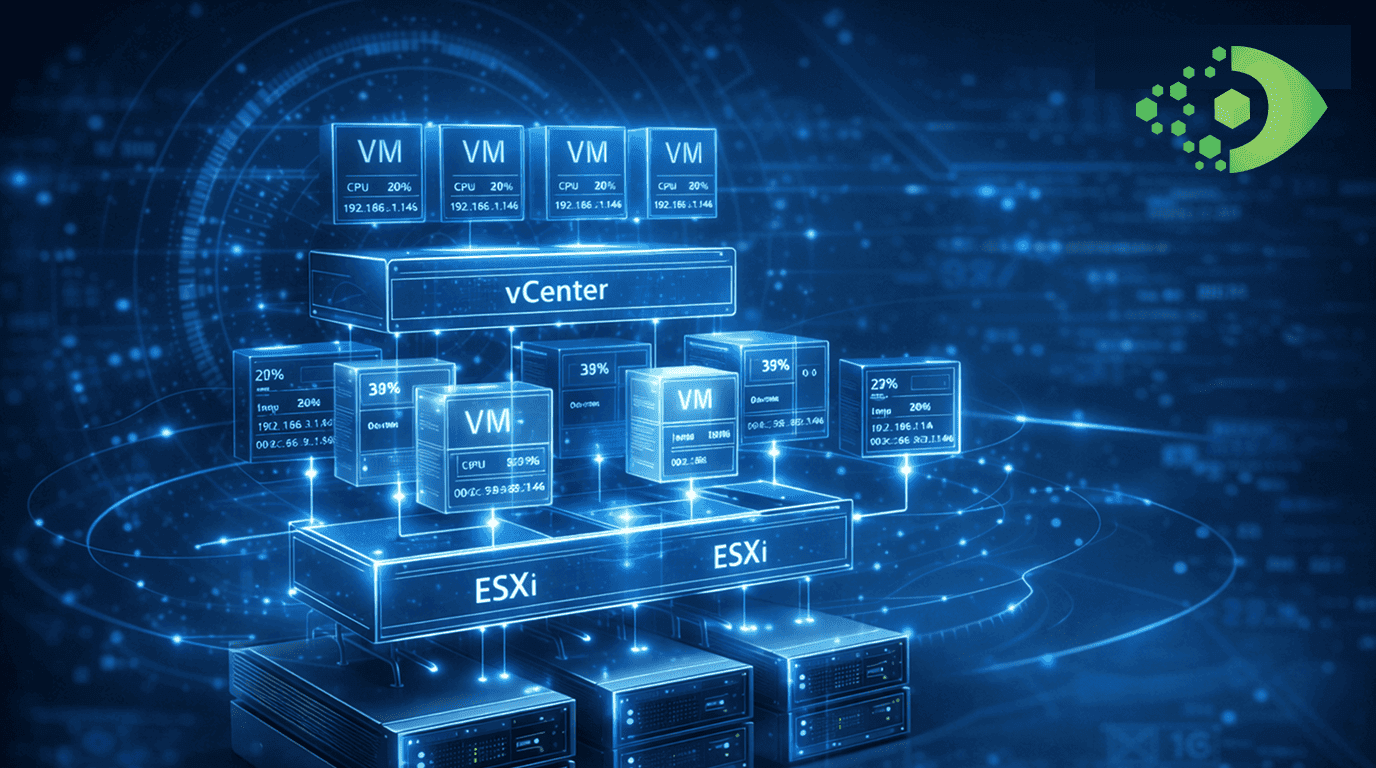
Virtualization introduced one of the most significant structural complications in CMDB management. Where once a server was a physical box with a fixed identity, a virtualized environment presents multiple layers, each with its own management plane and its own CMDB implications:
- Physical host: the bare-metal server that runs the ESXi hypervisor
- ESXi hypervisor: the VMware hypervisor installed on the physical host
- vSphere cluster: a group of ESXi hosts managed together for high availability and resource pooling
- Virtual machines: the guest operating systems running on the ESXi host
- vCenter Server: the management platform that controls multiple ESXi hosts
Each layer needs its own CI. Each needs accurate relationships to the layers above and below it. And the entire picture needs to be current — VMs move between hosts (vMotion), are provisioned and decommissioned daily, and can run on different physical hardware week to week.
Most CMDBs have partial VMware visibility at best. They might discover VMs via a standard Windows or Linux scan, capturing the guest OS details. They may not know which ESXi host the VM runs on, which cluster that host belongs to, or even that the host is a virtual machine rather than a physical one.
This is the virtualization discovery challenge: not just finding the VMs, but accurately representing the full stack of hosts, hypervisors, clusters, and guests as a properly related CI hierarchy.
Why Standard CMDB Discovery Misses the Virtualization Layer
Standard IP-range or agent-based discovery sees VMs the same way it sees physical servers: as hosts with IP addresses, operating systems, and hardware attributes. This approach creates VM CIs but loses the virtualization context entirely.
Without VMware-specific discovery:
- The CMDB knows a Windows Server CI exists at a given IP but does not know it is a virtual machine
- The CI has no relationship to an ESXi host — the CMDB cannot answer “which ESXi host does this VM run on?”
- Standalone ESXi hosts (not managed by vCenter) are often entirely absent — the hypervisor itself has no CI
- Cluster membership is invisible — the CMDB cannot answer “which VMs are affected if this ESXi cluster loses a host?”
VMware-specific discovery, using the vCenter API or direct ESXi API access, reads the virtualization layer directly and creates the CI types and relationships that standard scanning cannot produce.
Standalone ESXi Host Discovery
Not all ESXi deployments run under vCenter. Lab environments, edge sites, remote offices, and cost-constrained deployments frequently use standalone ESXi hosts — VMware hypervisors managing their local VMs without a central vCenter instance.
Standalone ESXi hosts are a persistent blind spot in enterprise CMDBs. vCenter-based discovery, by definition, only finds what vCenter manages. Standalone hosts — and all the VMs running on them — remain invisible.
Virima’s Standalone ESXi Discovery
Virima 6.1.1 introduces dedicated standalone ESXi host discovery. By connecting directly to the ESXi management API (VMware’s vSphere API exposed on the ESXi host itself), Virima discovers:
- ESXi Host CI: the hypervisor itself, with attributes including hostname, ESXi version, hardware model, serial number, and physical resource data (CPU cores, total RAM)
- VM CIs for all guests: every virtual machine running on the standalone ESXi host, with full guest OS metadata
- Host-to-VM relationships: “VM Runs On ESXi Host” relationships connecting each VM CI to the ESXi host CI
Standalone ESXi hosts — previously invisible in most enterprise CMDBs — become first-class CIs with accurate guest inventories and proper relationships.
Credentials and Access
Standalone ESXi discovery requires ESXi host credentials — a vSphere user account with read access to the host. This is distinct from vCenter credentials. Discovery profiles must be configured with ESXi-direct credentials for hosts that fall outside the vCenter management boundary.
vCenter-Based Discovery
For ESXi hosts managed by vCenter, discovery operates through the vCenter API — a single endpoint that exposes the full inventory of all managed ESXi hosts, clusters, resource pools, and virtual machines.
ESXi Host Identification via vCenter
When discovery connects to vCenter, it enumerates all ESXi hosts registered to that vCenter instance. For each host, Virima captures:
- Hostname and IP address of the ESXi management interface
- ESXi version (e.g., ESXi 8.0.x)
- Hardware model (Dell PowerEdge, HP ProLiant, etc.)
- Serial number — critical for asset management and warranty tracking
- MAC addresses for all physical network adapters
- Total CPU sockets, cores per socket, and logical processor count
- Total installed RAM
- Cluster membership — which vSphere cluster the ESXi host belongs to
Each ESXi host becomes an ESXi Host CI in the CMDB. Cluster membership creates a “Hosted By” relationship linking the ESXi Host CI to the vSphere Cluster CI.
VM-to-Host Mapping
For each virtual machine on a vCenter-managed ESXi host, discovery captures:
- VM name and UUID — the vCenter-assigned identity
- Guest OS — the operating system type and version as reported by VMware Tools or the VM configuration
- Power state — powered on, powered off, or suspended
- vCPU count and RAM allocation — the compute resources assigned to the VM
- Serial number — the VM’s BIOS UUID, used as a stable identifier across vMotion events
- MAC addresses for all virtual network adapters
- Current ESXi host — which physical host the VM is running on at discovery time
Each VM becomes a Virtual Machine CI in the CMDB. A “Runs On” relationship links the VM CI to the ESXi Host CI it currently runs on. If the VM moves via vMotion and discovery runs again, the relationship is updated to reflect the new host — keeping the CMDB current and accurate.
VM Data: What Gets Captured
The richness of VM CI data in Virima goes beyond what standard IP scans produce. For organizations using CMDB for asset management, hardware lifecycle planning, or audit support, the following attributes are particularly valuable:
Serial Number: For physical servers, this is the chassis serial number. For VMs, this is the BIOS UUID — a stable identifier that persists even when the VM is migrated between hosts. Using the BIOS UUID as the CI identifier prevents duplicate VM records when the same VM appears in multiple discovery scans.
MAC Addresses: Virtual network adapters each have a MAC address. Virima captures the MAC address for every virtual NIC, enabling CMDB correlation with network access control (NAC) systems, switch port data, and DHCP lease records.
CPU and RAM: vCPU count and RAM allocation at the VM level — distinct from the physical host’s CPU and RAM figures — are captured separately. This enables capacity planning reports that show both physical host utilization and the sum of VM resource allocations across the host.
VMware Tools Status: Whether VMware Tools is installed and current in the guest. This matters for discovery reliability — VMware Tools enables in-guest data collection that supplements the vCenter API view.
VM IP Mapping: Multiple Network Adapters
Many enterprise VMs have more than one network adapter — a primary management interface, a secondary backup interface, a heartbeat network, or a dedicated storage network. Standard CMDB discovery often captures only the primary IP address from the OS, missing secondary interfaces entirely.
Virima’s VMware discovery captures all IP addresses from all virtual network adapters reported by the vCenter API (via VMware Tools in the guest). For a VM with three network adapters — a management NIC, a vMotion NIC, and a storage NIC — all three MAC/IP pairs are captured and stored as attributes of the VM CI.
This complete IP mapping is critical for:
- Network security analysis: all IP addresses for a VM are known, preventing gaps in firewall rule audits
- Incident correlation: a network alert from any of the VM’s IPs can be correlated to the correct CMDB CI
- DHCP and NAC reconciliation: all MAC/IP pairs for the VM are available for comparison against DHCP lease records and network access control systems
CMDB Relationship Mapping for Virtualization
Accurate VMware discovery creates a relationship hierarchy in the CMDB that reflects how the virtualization stack is actually structured:
| Relationship | Parent CI | Child CI |
|---|---|---|
| Hosted By | ESXi Host | vSphere Cluster |
| Runs On | Virtual Machine | ESXi Host |
| Connected To | Virtual Machine | vNetwork / Port Group |
| Managed By | ESXi Host | vCenter Server |
This relationship structure enables queries that are otherwise impossible:
- Which VMs run on ESXi hosts in the Production cluster? — traverse Cluster to ESXi Host to VM
- Which VMs are at risk if ESXi host prod-esxi-04 goes offline? — traverse ESXi Host to VM
- What is the blast radius if the vCenter server becomes unavailable? — traverse vCenter to all managed ESXi hosts to all VMs
Read more about how automated discovery feeds CMDB accuracy across your infrastructure.
Change Management Value: Blast Radius in Virtualized Environments
The most direct business value of complete VMware CMDB discovery is accurate blast radius analysis for infrastructure changes.
Scenario: ESXi Host Maintenance
An ESXi host requires firmware updates. The change record is submitted. Without ESXi Host CIs and VM-to-host relationships in the CMDB, the change manager cannot assess the impact without calling the VMware admin for a manual VM enumeration.
With Virima’s VMware discovery data, the change management system queries the CMDB: which VMs run on this ESXi host? The answer is immediate: 14 VMs, including the ERP application server, the backup proxy, and three development servers. The change is scheduled during a maintenance window with the ERP application team notified.
Scenario: Cluster Host Failure
An ESXi host in a production cluster fails unexpectedly. HA kicks in and VMs restart on other hosts. The incident team needs to know which VMs were affected and which applications they run. With VM-to-host relationships in the CMDB, this query runs in seconds. Without them, it requires a VMware admin to check vCenter — an additional communication loop during an active incident.
Scenario: vCenter Planned Downtime
vCenter is scheduled for an upgrade. The change manager queries the CMDB: which ESXi hosts are managed by this vCenter instance? Which VMs run on those hosts? The blast radius includes all vCenter-managed VMs — not an outage scenario (hosts continue to run without vCenter), but a period during which vMotion, DRS, and HA are unavailable. Applications with maintenance policies that depend on these features need to be notified.
Best Practices for VMware CMDB Discovery
Maintain separate discovery profiles for vCenter and standalone ESXi. vCenter-based discovery covers all managed hosts in a single scan. Standalone ESXi hosts require individual scan targets. Maintain a registry of all ESXi hosts — managed and standalone — and ensure all are represented in discovery profiles.
Use VM BIOS UUID as the CI identifier. VMs migrate between hosts. If your CMDB uses hostname or IP as the primary identifier, vMotion events create duplicate CIs. The BIOS UUID is stable across migrations and is the correct identifier for VM CIs.
Schedule VMware discovery more frequently than physical infrastructure discovery. VMs are provisioned and decommissioned on development vcenter cmdb integration cycle timescales — sometimes daily. A 24-hour discovery cycle appropriate for physical servers may miss entire VM lifecycles. Consider a 4-8 hour cycle for VMware discovery in dynamic environments.
Cross-reference VM CIs with your infrastructure CMDB. Once VMs appear as CIs, correlate them with your physical host CIs. The goal is a complete picture: physical host to ESXi hypervisor to VM guests — all as a traversable CI hierarchy in the same CMDB.
Include VMware CIs in your service map scope. ViVID service maps need to include VM CIs and ESXi Host CIs as nodes in the topology. A service map that shows an application server but not the VM it runs on — and not the ESXi host below the VM — is structurally incomplete for blast radius analysis.
Next Steps
Complete VMware CMDB visibility requires discovery at every layer of the virtualization stack: physical hosts, ESXi hypervisors, vSphere clusters, and individual VMs — with relationships that accurately reflect which VM runs on which host, which host belongs to which cluster, and which vCenter instance manages the environment.
Virima 6.1.1 delivers this coverage for both vCenter-managed and standalone ESXi environments, capturing serial numbers, MAC addresses, CPU/RAM allocation, and all VM IP addresses across every network adapter.
Ready to see your full virtualization estate in your CMDB? Schedule a demo at virima.com and we’ll show you exactly what Virima 6.1.1 discovers in your VMware environment.